


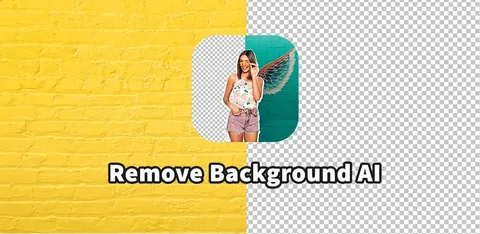
If you’ve ever spent twenty frustrated minutes in Photoshop trying to trace around someone’s hair with the lasso tool, you already know why background removal tools exist. EzRemove is one of the newer names in this space, promising to strip the background out of any photo in just a few seconds no design degree required.
In this guide, I’ll walk you through exactly what EzRemove does, how it stacks up against the competition, and whether it deserves a spot in your everyday editing toolkit. Whether you’re prepping product shots for an online store or just want a clean headshot for LinkedIn, this breakdown will help you decide if EzRemove is the right call.
What Is EzRemove?
At its core, EzRemove is a browser based AI tool built to remove the background from any photo and hand you back a clean, transparent PNG. There’s no software to install and no account required to get started you just upload an image and let the algorithm do the heavy lifting.
What makes EzRemove worth talking about isn’t the basic premise, since plenty of tools remove backgrounds these days. It’s how it handles the messy parts of an image: flyaway hair, glossy product edges, soft shadows, and the kind of fine detail that usually gets butchered by cheaper cutout tools.
The platform runs entirely online, which means it works the same whether you’re on a laptop, a tablet, or your phone during a quick break between meetings. That kind of accessibility matters more than people give it credit for.
How EzRemove Works
Behind the friendly interface, EzRemove relies on machine learning models trained to recognize subjects in a photo people, products, pets, vehicles, logos, you name it. The AI studies edges, contrast, and color patterns to figure out what’s “foreground” and what’s “background.”
Once it identifies the subject, it separates it from everything else in a single automated pass. You don’t draw a selection box, you don’t fine tune a lasso path, and you don’t wait around for a render. The process typically finishes in just a few seconds.
After the cutout is done, you’re not stuck with transparency either. You can swap in a solid color, a custom scene, or keep the transparent PNG for layering into other designs later. That flexibility is a big part of why people keep coming back to it.
The AI Behind the Cutout
The detection engine improves over time as more images get processed, which is fairly standard for AI-driven tools today. It’s not “smart” in a sentient sense it’s pattern recognition trained on enormous datasets of labeled images.
That said, the practical result is what matters to most users: cleaner edges around hair, fur, and intricate object outlines than older, rules-based background removal methods ever managed.
Key Features That Set EzRemove Apart
It’s easy to say a tool “removes backgrounds.” The real question is what else it brings to the table once that core job is done. Here’s where EzRemove earns extra attention.
- Instant background removal — most images process in under five seconds, even on a fairly average internet connection.
- Background replacement — swap the removed background for white, a solid brand color, or an AI-generated scene like a studio backdrop or outdoor setting.
- Batch processing — upload a folder of images at once instead of repeating the same steps over and over.
- Object and text erasing — beyond backgrounds, you can clean up watermarks, stray text, or distracting clutter in the frame.
- Multiple edit modes — separate modes tuned for general photos, logos, text-heavy screenshots, and anime-style art.
Each of these features matters for a different type of user, which is exactly why EzRemove markets itself to such a wide audience from solo creators to small e-commerce teams.
Batch Background Removal Saves Real Time
If you’re managing a product catalog with fifty or a hundred SKUs, doing each photo manually is simply not realistic. Batch processing lets you queue up an entire folder, walk away, and come back to a stack of finished transparent PNGs.
This single feature is often the deciding factor for sellers comparing tools, since time saved on editing translates directly into time spent actually running the business.
Who Should Use EzRemove?
Background removal tools tend to attract a wider crowd than people expect. It’s not just professional photographers it’s anyone who needs a clean image, fast.
E-commerce sellers rely on consistent, distraction free product photography for marketplaces like Amazon, Etsy, and Shopify. A messy or inconsistent background can make a listing look unprofessional even if the product itself is great.
Content creators and marketers use background removal constantly when building ad creatives, social graphics, and thumbnails. Swapping backgrounds quickly means testing more design ideas without reshooting anything.
Freelancers and small businesses appreciate that EzRemove doesn’t require a subscription to expensive editing suites. It removes a real cost barrier for people just getting their visual brand off the ground.
Everyday users students working on presentations, job seekers polishing a headshot, or anyone making a quick collage get a surprising amount of value from a tool this simple to use.
EzRemove vs. Other Background Removers
There’s no shortage of competition in this category, and that’s actually good news for users since it keeps quality high across the board. Here’s how EzRemove generally compares to a few well known names.
| Tool | Best For | Standout Trait |
|---|---|---|
| EzRemove | Fast, no signup background removal | Speed and simplicity |
| Remove.bg | Product photography and portraits | Industry recognized edge accuracy |
| PhotoRoom | Styled, template ready product shots | Built in design templates |
| Pixlr | Lightweight all in one editing | Extra filters and retouching tools |
The honest takeaway is that no single tool wins every category. If you want the fastest path from upload to download with zero friction, EzRemove tends to hold its own. If you need deep manual fine-tuning on complex images, a more feature heavy editor might serve you better.
What keeps EzRemove competitive is that it doesn’t try to be everything. It focuses on doing one job — clean background removal extremely well, then layers a few useful extras on top.
Step by Step: How to Remove a Background With EzRemove
If you’ve never used the tool before, the workflow is refreshingly straightforward. Here’s what the process typically looks like from start to finish.
- Upload your photo. JPG, PNG, and HEIC formats are generally supported, and clear, well lit subjects produce the best results.
- Choose an editing mode. Select General for everyday photos, Logo for brand graphics, Text for screenshots, or Anime for illustrated art.
- Let the AI process the image. This step usually takes just a few seconds, even for higher-resolution files.
- Review the cutout. Zoom in around hair, fur, or fine edges to check for any rough spots before moving on.
- Choose your background. Keep it transparent, switch to white, pick a brand color, or generate a new scene entirely.
- Download the finished PNG. From there, it’s ready to drop into a product listing, social post, or design file.
The whole sequence rarely takes more than a minute or two, which is precisely the appeal for people juggling dozens of images at once.
Common Mistakes to Avoid
Even with a tool this user friendly, a few small habits can make a noticeable difference in your final result.
- Avoid uploading heavily compressed or blurry images, since the AI has less detail to work with.
- Don’t skip the review step even excellent AI occasionally misses a stray shadow or transparent object edge.
- Pick the right mode for your content; using “General” mode on a logo can produce softer edges than the dedicated Logo mode.
Tips for Getting the Cleanest Cutout
A great background removal result starts before you even open the tool. The quality of your original photo plays a bigger role than most people assume.
Shoot or select images with strong contrast between your subject and its background. A dark sweater against a dark wall, for example, will always be harder for any AI including EzRemove to separate cleanly.
Good, even lighting also matters more than camera quality. Harsh shadows or strong backlighting can confuse edge detection, especially around hair and fine textures.
Finally, when working with product photography specifically, keep the item centered and avoid overlapping objects in the frame. A single clear subject gives the AI the best chance at a flawless cutout.
Is EzRemove Actually Free?
This is one of the most common questions people ask before committing to any new tool, and it’s a fair one. Most browser based background removers advertise “free” while quietly gating the actual download behind a paywall or watermark.
EzRemove generally allows you to preview the background removal result at no cost, which lets you confirm the quality before deciding whether to download the full resolution file. Pricing models across tools in this space vary some charge per image, some use credit packs, and others bundle everything into a subscription.
If cost is a major factor for you, it’s worth checking the current pricing page directly before processing a large batch, since terms in this fast moving software category tend to shift fairly often.
Final Thoughts

Background removal used to be a tedious, manual chore reserved for people who knew their way around layer masks and the pen tool. EzRemove along with the broader wave of AI-powered editing tools has genuinely changed that equation.
Whether you’re polishing product photos for a growing online store, creating social content on a tight deadline, or simply want a clean headshot without booking a studio session, a tool like this removes a real barrier between you and a professional looking image.
No single background remover is perfect for every situation, and EzRemove is no exception. But for speed, simplicity, and a genuinely useful free tier, it earns its place among the tools worth trying at least once.
Frequently Asked Questions
What is EzRemove used for?
EzRemove is primarily used to automatically remove the background from photos, leaving a clean, transparent PNG that can be reused for product listings, social graphics, profile pictures, and design projects.
Is EzRemove safe to use with personal photos?
Most browser based background removal tools, including EzRemove, process images temporarily and delete them from their servers after a short window. Always check the current privacy policy before uploading sensitive or personal images.
Does EzRemove work on mobile devices?
Yes, EzRemove is browser based, so it generally works on smartphones and tablets without needing a dedicated app, though a stable internet connection will give you the smoothest experience.
Can EzRemove handle complex images like hair or fur?
EzRemove is specifically designed to handle tricky edges such as hair strands, fur, and fine textures more cleanly than older, rules based cutout tools, though extremely complex or low contrast images may still need a quick manual touch up.
Is there a free alternative if EzRemove doesn’t fit my needs?
Yes tools like Remove.bg, PhotoRoom, and Pixlr all offer free tiers with background removal features, so it’s worth comparing a couple of options to see which interface and feature set fits your workflow best.
